Origin Story
A few weeks ago, I stumbled upon late.sh:
“a cozy command-line clubhouse for computer people”
If you haven’t heard of it, it is basically an online social space for computer nerds to hang around and chat. It’s got your typical discussion channels like you would have on Discord, Matrix or IRC. But it’s got even more to offer than that!
Music, mini-games, arcade games, actual RPGs like Lateania, NetHack or even Rebels, and much much more…
Only good vibes there 〜(꒪꒳꒪)〜
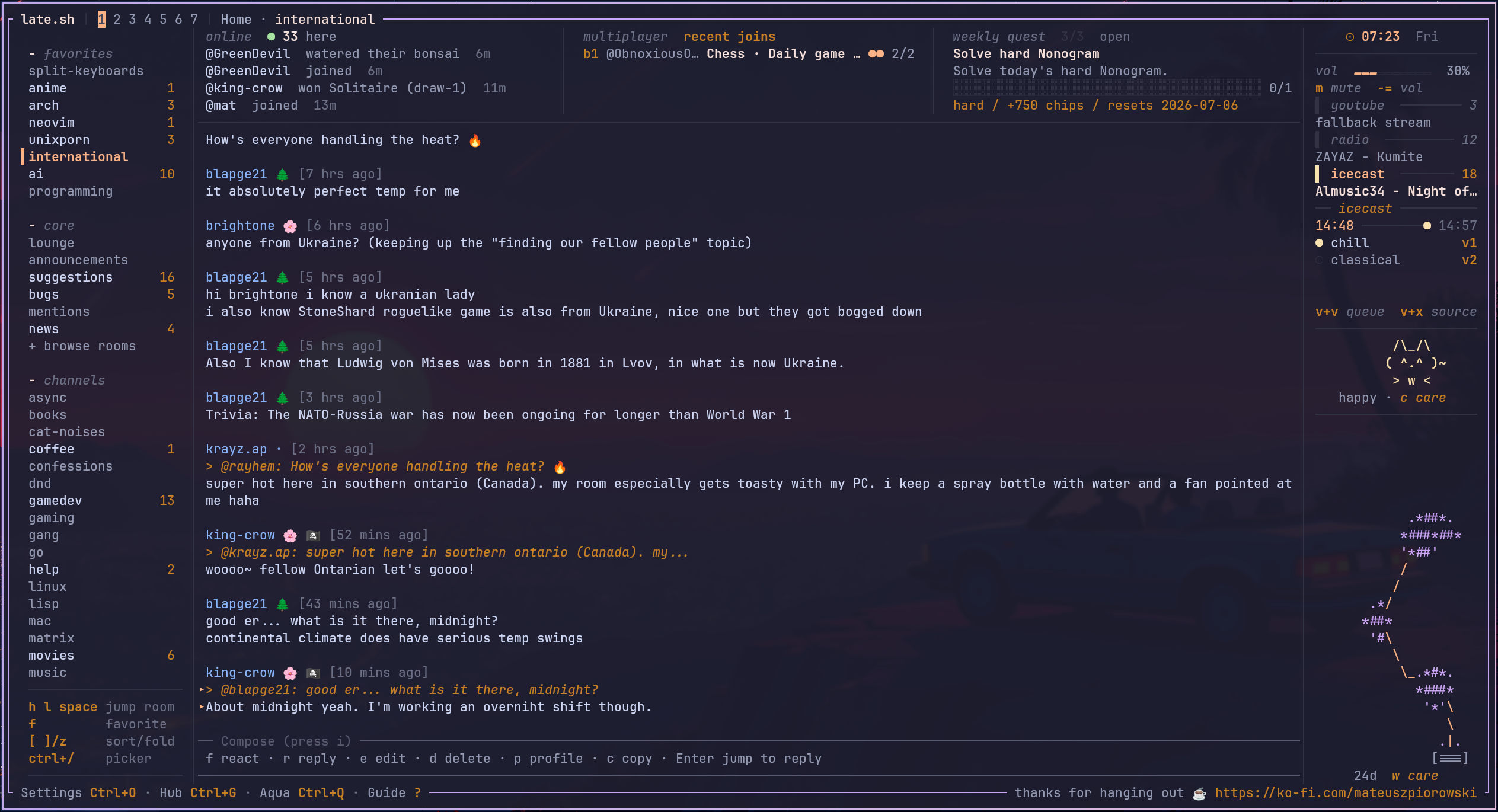
All you need is a computer with SSH and you are good to go.
The late.sh team also provides a companion CLI you can install for optional features like in-terminal music or voice chat support.
Yes, you read that correctly…
VOICE CHAT in the terminal (˶°ㅁ°)!!
late.sh is full of good surprises like that.
It’s a very cool place to visit if you are a terminal nerd who is comfortable with SSH.
So if that description fits your profile, make sure to check it out 🙂.
We have been seeing a rise of SSH-based services lately, like:
- terminal.shop to order coffee
- stickr.shop to buy stickers
- and now late.sh for hanging around and chill in the terminal
There are probably plenty others I do not know. But anyway, I love the fact that the terminal space continues to thrive!
The late.sh icon picker
Alright, now that you have a good idea of what late.sh is, let’s talk about the main subject of this article: the icon picker*.
As I mentioned already, late.sh has a LOT of features, and one of them is an icon picker which I immediately fell in love with:
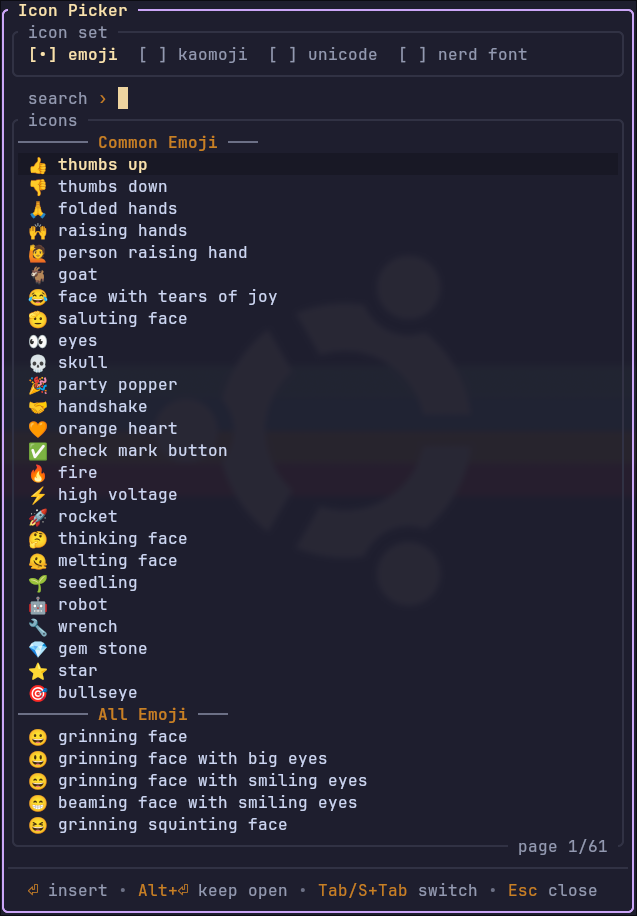
To access it, simply type /icons in any text channel.
First of all, I really like the look and feel but what I love about it is that it’s got:
- Emojis: 👍🐚🌊🎉
- Unicode symbols: ★ ▲ ░ ○
- Nerd Fonts: (which your browser may not render)
- and… Kaomojis: ✧。◝(ᵔᗜᵔ)◜✧*。 — ٩(◕‿◕。)۶ — (╯`Д´)╯︵ ┻━┻
I did not even know Kaomojis had an actual name, I used to call them ASCII art emojis.
So, why do I love this so much?
Up until this point, I had been using the following icon pickers on my system:
- rofimoji for emojis
- rofi-nerdy for Nerd font icons
- amoji.sh for Kaomojis (terminal only)
- and I did not even have something for Unicode symbols…
Three different programs to pick icons…
It does the job but I never really liked this solution.
So, when I found about the late.sh icon picker, it made me want to push my own Linux ricing further.
Don’t get me wrong, Rofi is a very cool project and I still use it as my main application launcher but I have wanted to move away from it for a while now.
Specifically, I have been trying out these alternatives recently:
I really the minimalistic fzf-like feel of fsel, but I am not at the point of daily driving it yet.
Anyway… I digress.
We are focusing on the icon picker here. But hopefully, you now understand why I fell in love with the late.sh icon picker at first sight.
Alright, making a desktop icon picker out of this sounds good on paper but how do we proceed exactly?
The Robbery
Well…
Since I had already made minor contributions to late.sh, I had my own local fork ready and available. From this point, all I did was instruct lil’ claude to extract the code for the icon picker into its own separate project.
I have to say: for these kind of refactor tasks, coding agents work really well.
that's a Zero Wing reference btw.
And just like that: The latuicon project was born!
(It was simply called icon-picker in the beginning, but anyway…)
I adjusted the UI a little bit so that it works better as a standalone TUI and after a few iterations, that’s what it looks like:
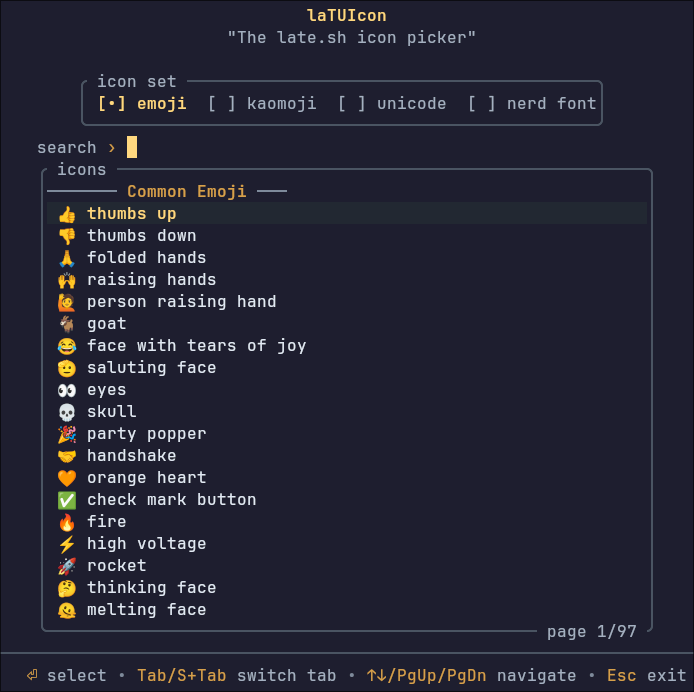
Apart from the removal of external borders, addition of title/subtitle and alignment tweaks, the look and feel is the exact same. As long as I am in the terminal, I can simply invoke it using the latuicon command in my shell.
Nice! We have got our standalone icon picker now!
Hold up…
A TUI icon picker is nice and all but I thought the objective was to make this a desktop application, no?
The Cheat
So, we have a TUI now, but what we really want is a desktop application right?
If you are not already familiar with my Hyprland shenanigans, I like to find counter-intuitive ways of making desktop apps. I have never dabbled with GTK before and though I reckon it would be cool to learn how to make actual desktop apps, I do not want to bother with that for now.
But how do we make a desktop app without actually creating a new desktop app?
The answer is simple: We simply reuse an existing one.
In my “Custom Desktop Web Apps with Hyprland” article, I use a custom Chromium browser instance to create fake desktop apps so that I can make any web app into its own “application”. This works when your goal is to render Web User Interfaces but in our case we want to display a Terminal User Interface (TUI).
No problemo. ( ¬ᴗ¬)
If we need a web browser to turn websites into desktop applications, all we need is a terminal to turn TUIs into desktop applications. ¯\_(ツ)_/¯
The entire science is compacted within this floatty.sh script:
 1#!/usr/bin/env bash
 2
 3wm_class_suffix="$1"
 4shift
 5
 6full_wm_class="floater-kitty-$wm_class_suffix"
 7
 8# prevent multiple floater-kitty-<FOO> windows to be opened at the same time
 9hyprctl clients -j |
10  jq --exit-status --arg wm_class "$full_wm_class" \
11    'any(.[]; .class == $wm_class)' >/dev/null 2>&1 &&
12  exit 1
13
14if [[ -n "$FLOATTY_CAPTURE_OUTPUT" ]]; then
15  tmpfile="$(mktemp)"
16  trap 'rm -f "$tmpfile"' EXIT
17
18  kitty --class "$full_wm_class" sh -c "$* > \"$tmpfile\""
19
20  if [[ -s "$tmpfile" ]]; then
21    cat "$tmpfile"
22  fi
23else
24  kitty --class "$full_wm_class" sh -c "$*"
25fi
Feel free to examine it yourself but if you are too lazy, here’s a breakdown:
- When invoked, it launches a new instance of
kitty(my main terminal) and assigns it thefloater-kitty-<SUFFIX>window manager class (where<SUFFIX>is an external argument) - The class is for Hyprland (my Window Manager) to find the window and style/position it properly
- The check on
line 9is to ensure only one instance with this WM class can exist - If
$FLOATTY_CAPTURE_OUTPUTis set, the output of the shell command will be the output of this kitty instance
Setting FLOATTY_CAPTURE_OUTPUT is important because without it, we would have no way of keeping track of the icon we selected in latuicon.
The reason I made this “capture” an optional feature is because I actually re-use this floatty.sh script for many other desktop-like applications and I don’t need to care about the terminal stdout in all of them.
TL;DR: We spawn a terminal, run stuff inside of it and do something on exit.
In our case, we could make latuicon into a “desktop app” by running the following command:
FLOATTY_CAPTURE_OUTPUT=1 bash floatty.sh latuicon latuicon | wl-copy
This would spawn a new kitty terminal and assign it the following WM class: floater-kitty-latuicon.
The terminal will run the latuicon program, let the user interact with it and pipe the output to wl-copy to update the system clipboard.
Nice! All that’s left is to wire this to an actual Hyprland keybinding:
# See https://wiki.hyprland.org/Configuring/Keywords/
$mainMod = SUPER # Sets "Windows" key as main modifier

bindd = $mainMod, comma, laTUIcon icon picker, exec, FLOATTY_CAPTURE_OUTPUT=1 bash floatty.sh latuicon latuicon | wl-copy
And lastly: We need some custom Hyprland rules to display it as a centered floating window of size 1000 x 800 pixels:
# Special rules for floating/prompt terminals
windowrule {
    name = floater-kitty
    match:class = ^(floater-kitty-.*)$
    no_anim = on
    float = on
    center = on
    size = 1000 800
}

windowrule {
  name = floater-kitty-latuicon
  match:class = floater-kitty-latuicon
  size = 700 700
}
And voilà (* ^ ω ^) !
Demo of latuicon-v0.1.0
It works well and I use it everyday ٩(◕‿◕。)۶ (especially for writing this article!)
New features
Honestly, the original icon picker from late.sh already has everything I need.
The only features I added so far are:
- an improvement of the search by making use of the Levenshtein algorithm, which does word-level typo correction.
- the “all” icon set to search through everything (only available in the latest v0.1.1 release)
The Levenshtein thing is actually demonstrated in the demo video above. When I type
volage, it will actually allow me to select thehigh voltageemoji ⚡ (despite forgetting to type the ’t’ character).
Levenshtein is probably not the most suited thing here but I wanted to have some fun.
I got the idea from my previous project; MéMonde, an open-source Geography game where you have to guess all the countries of the world in 15 minutes.
Levenshtein works really well for this Geography game since there are a lot of countries to enter and you are under time pressure so having a system that does not require perfect spelling is a nice thing to have.
The Licensing
The reason I did not release latuicon sooner is that I was not sure how to solve the licensing aspect. The original late.sh project uses an FSL-1.1-MIT license which I had never encountered before. So I took some time to read through it and ask around as I did not want to mess this up (even if latuicon is likely never gonna be used by anyone other than myself).
So, before releasing it, I asked both Mateusz Piórowski (creator of late.sh) and Mike Clark (creator of the embedded icon picker in late.sh) if they were okay with me making the project public.
The newest development of the latuicon project are under an MIT license but the initial commit, where I extracted the code from the late.sh project, is still under the original FSL-1.1-MIT license.
As I understand, this FSL will naturally transform into an MIT license two years after the project initial release.
So, for now, I have kept both licenses in the latuicon repo:
LICENSE: MITTHIRD_PARTY_LICENSES.md: FSL-1.1-MIT
That’s it for the legal shenanigans.
This is NOT legal advice by the way.
Give credit where credit is due
Let’s be honest: I did not do much here. ʕ•ᴥ•ʔ
Apart from the two new tiny features I mentioned, the code of the latuicon project comes from these two amazing people:
- Mateusz Piórowski (creator of
late.sh) - Mike Clark (creator of the embedded icon picker in
late.sh)
latuicon would not be a thing if it weren’t for the both of them.
When I told them about my project, they were both very cool with the idea and that gave me the little push I needed to release it into the wild.
I am very thankful to Mat for starting late.sh and Mike for all his past/current contributions to the project.
Thanks guys 🙏
late.sh truly is a wonderful place. The community is very welcoming and the text channels are full of interesting discussions. It’s a very active community, and…
By the time I finished writing this article, it even got a brand new space where you can move around and interact with other users in a 2D world:
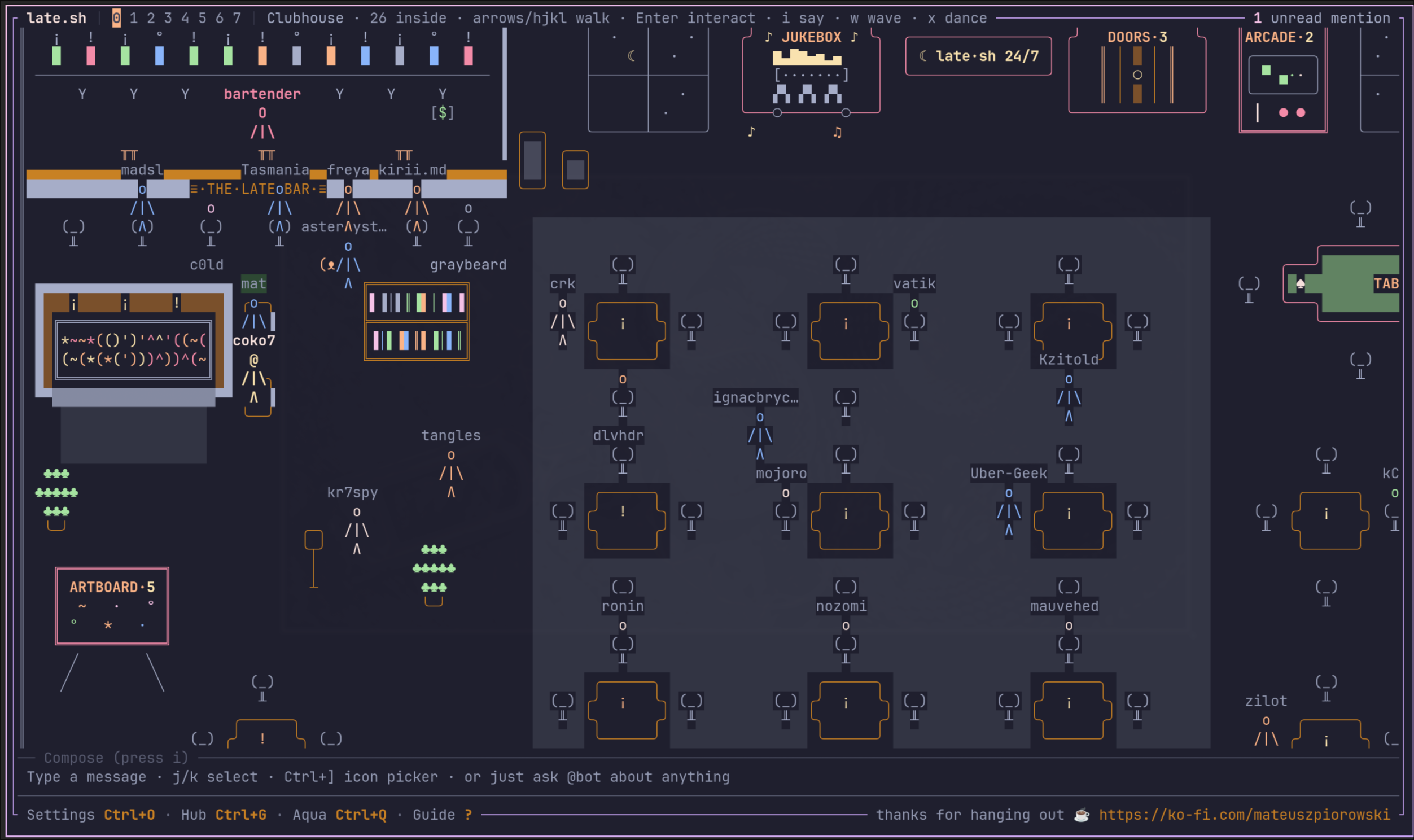
If I did not convince you already, please consider swapping by to say hi 👋.
The Conclusion
I am much more happy using latuicon than I was using three different icon pickers.
This is, yet again, a project highly tuned for my own workflow, but that’s how it should be:

Every project I ever started was because I wanted to automate things away or simply have some fun. And as long as it works out for me, then I am happy 🙂.
If it ends up being useful to others: even better! But that’s just a bonus :)
You can find the project on GitHub: github.com/coko7/latuicon
If you have cargo on your system, installing latuicon is very easy:
cargo install latuicon
I am not sure it works on Macroslop Windows and I personally don’t need it to… But if that’s something YOU care about, then feel free to open an issue on GitHub or contribute directly via a pull request. I will be happy to add that in.
That’s it for today.
Cya (˶ᵔᗜᵔ˶)ノ゙